The quick answer
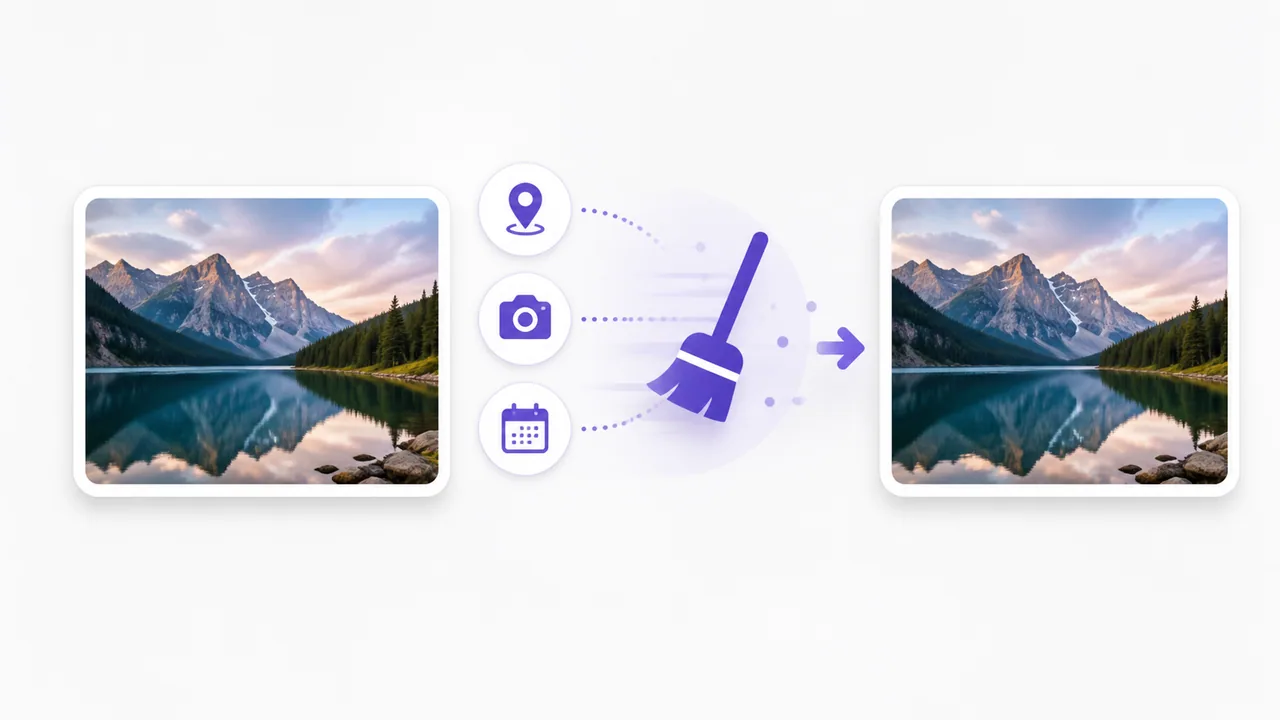
Photos can contain descriptive information written by a camera, phone or editing app. In a JPG file, standard EXIF data may include camera settings, capture time, orientation and, when location recording was enabled and retained, GPS coordinates.
To remove that standard EXIF block, open Remove EXIF Metadata, choose a JPG or JPEG, process it, and download the new copy. The image stays in your browser and its JPEG pixel stream is copied without re-encoding.
The scope is intentionally specific: this tool removes standard EXIF APP1 segments from JPG/JPEG files only. It does not claim to remove XMP, IPTC, comments, proprietary application segments or metadata from PNG, WebP, HEIC and other formats.
What EXIF data is
EXIF is a standard used to store information alongside an image. Depending on the device and workflow, fields can include:
- camera make and model
- lens and exposure settings
- date and time
- image orientation
- software used to edit the file
- GPS latitude and longitude
Not every JPG has all these fields. A camera may omit location, a messaging app may remove metadata, or an editor may replace the original EXIF block. The absence of GPS does not mean there is no EXIF, and the presence of EXIF does not automatically mean location is included.
The CIPA Exif overview describes the standard and its role in digital images.
Why you might remove EXIF
Removing EXIF can be sensible before publishing an original camera photo, sharing it with a broad audience, or uploading it to a service where capture details are unnecessary.
The most sensitive example is location. If a device stored GPS coordinates, the file can reveal where the photo was taken. That might be harmless for a public landmark but inappropriate for a home, school, workplace or private event.
Other fields are usually less sensitive, but camera serial information, timestamps or editing-software details may still be information you prefer not to distribute.
How to remove standard EXIF from a JPG
1. Keep the original
Make a working copy first. Metadata can be useful for sorting photos, correcting orientation and understanding camera settings. Removing it is easy; reconstructing it accurately later may not be.
2. Open the EXIF remover
Use Remove EXIF Metadata. Batch 1 accepts JPG and JPEG files up to the tool's displayed browser-safe limit.
3. Choose the photo
The file is read locally. It is not uploaded to EveryFileTool for processing.
4. Process and review the result
The tool parses the JPEG structure and removes standard APP1 segments that carry the EXIF signature. Other JPEG segments are preserved. If no matching EXIF segment is present, the result says so instead of pretending data was removed.
5. Download the new copy
The JPEG image stream is not decoded and recompressed. That avoids another lossy quality pass, but you should still open the output and confirm it displays correctly before sharing it.
What this tool does not remove
"Metadata" is a broad term. A JPEG can contain information outside the standard EXIF APP1 block. Examples include XMP, IPTC records, comments, color profiles and proprietary application data.
EveryFileTool's current remover does not promise to remove those items. It also does not currently support metadata removal from PNG, WebP, HEIC, AVIF or TIFF. If your workflow requires a fully sanitized file for legal, investigative or high-risk privacy reasons, use a specialist metadata inspection and sanitization process and verify the result independently.
Removing embedded data also cannot remove information visible in the pixels. A street sign, house number, badge, reflection or recognizable landmark remains part of the photograph.
Does EXIF removal change image quality?
Not in this workflow. The tool removes matching metadata segments and copies the compressed JPEG image data. It does not draw the image onto a canvas or create a newly compressed photo.
That differs from using an editor's "export" function, which may decode and recompress the image. Re-exporting can still be useful when you intentionally want to resize or compress a photo. Use the Image Compressor separately when smaller file size is the goal.
A practical privacy checklist
Before sharing a sensitive photograph:
- Inspect what is visible in the image itself.
- Remove standard EXIF when those fields are unnecessary.
- Confirm whether your platform adds, removes or retains metadata.
- Share the downloaded copy, not the untouched original.
- Keep the original privately if its date, orientation or camera settings are useful.
You can use the Image Dimensions Checker to confirm width, height and format, but it is not a metadata inspector.
Frequently asked questions
Does social media remove EXIF automatically?
Some services process uploaded images and may remove fields, but behavior can differ by service, upload method and time. Remove sensitive EXIF yourself when you need control instead of assuming a platform will do it.
Can EXIF removal make a photo anonymous?
No. It removes one class of embedded information. The image content, filename, surrounding message, account and upload activity can still reveal context or identity.
Why does the result sometimes have the same file size?
A file with no standard EXIF APP1 segment has nothing for this tool to remove. Even when EXIF exists, the metadata can be small compared with the compressed image stream.
Are my photos uploaded?
No. Parsing and EXIF removal happen in your browser, and the result is created locally for download.