The quick answer
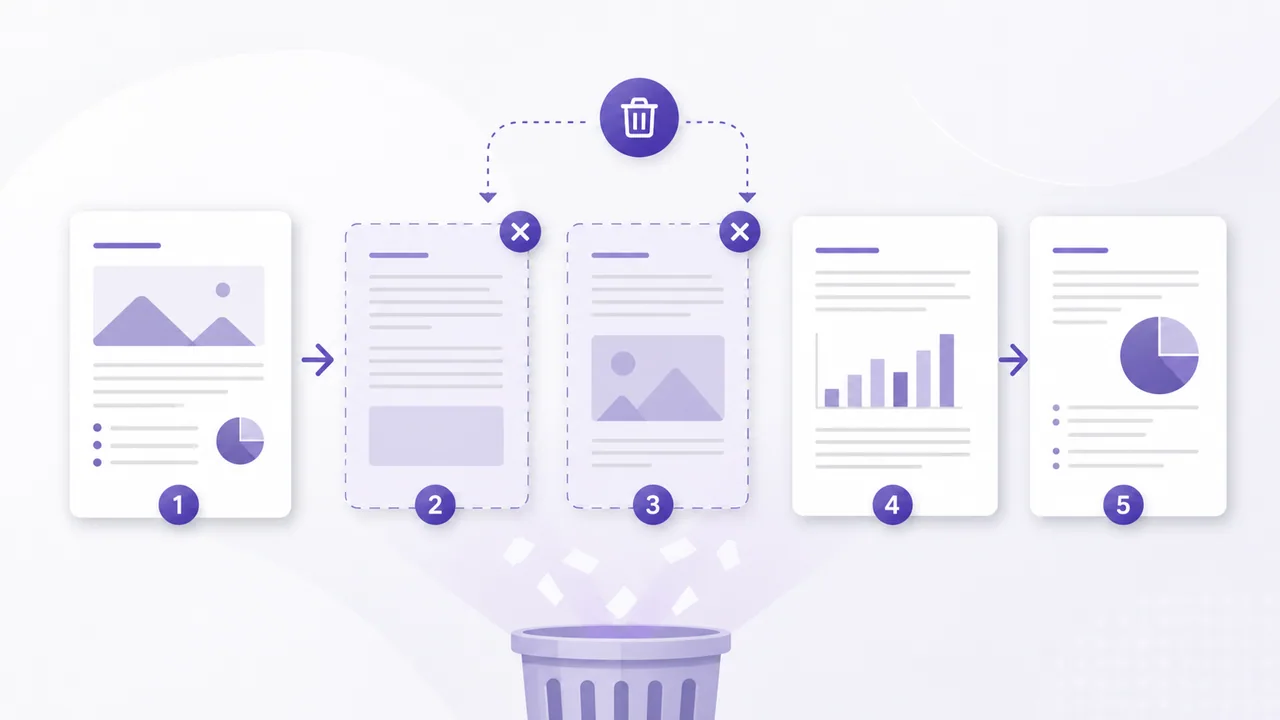
To remove pages without installing a desktop editor, open Delete PDF Pages, choose the document, select the page previews you do not want, process the file, and download a new PDF. The original stays unchanged.
The tool works in your browser and supports a visual organizer of up to 200 pages within the displayed 100 MiB PDF limit. You must keep at least one page.
Before editing a signed, form-heavy or highly structured PDF, save the original. Rebuilding pages can invalidate digital signatures and may affect forms, bookmarks, annotations or other advanced document features.
When deleting pages is the right action
Page deletion is useful when a document contains material that should not appear in the copy you are sending or storing. Common examples include:
- a blank page created during scanning
- outdated instructions or cover sheets
- duplicate pages
- private appendices not meant for a recipient
- draft pages mixed into a final document
Deletion creates one new PDF containing the pages that remain. If you instead need to save selected pages as separate files, Split PDF may be a better workflow.
How to delete PDF pages online
1. Keep an untouched original
This matters most for signed documents, interactive forms and records with carefully maintained navigation. Work on a copy so you can return to the source if the rebuilt file loses an advanced feature.
2. Open Delete PDF Pages
Go to the Delete PDF Pages tool. The file is processed locally; it is not sent to an EveryFileTool upload server.
3. Choose the PDF
After the file passes format, permission, size and page-count checks, the browser creates bounded page thumbnails. A page number identifies each source page so you can review the order carefully.
4. Select unwanted pages
Mark only the pages you want to remove. Check page numbers as well as visual content, especially when pages look similar.
The tool prevents a result with zero pages. If the whole document is obsolete, delete the local file through your operating system instead of trying to create an empty PDF.
5. Process the document
The browser copies the pages you kept into a new PDF in their original order. It does not rasterize ordinary page content, but rebuilding a PDF is still a structural change.
6. Download and verify
Use the explicit Download PDF button, open the result, and inspect the first page, last page and pages around every deletion. Confirm the downloaded page count before sharing it.
Deleting, extracting, splitting and reordering are different
These tasks can sound similar:
- Delete pages: remove selected pages and keep one resulting PDF.
- Extract pages: save selected pages as their own PDF while leaving the source untouched.
- Split a PDF: create multiple PDFs by page or range.
- Reorder pages: keep every page but change their sequence.
Use Reorder PDF Pages when all content belongs in the result but the sequence is wrong. Its Earlier and Later buttons provide a keyboard-accessible alternative to dragging.
If documents need to be combined after editing, see How to merge PDF files online.
What can change in an advanced PDF
A PDF is more than visible page content. It can contain signatures, fields, bookmarks, named destinations, attachments, layers, scripts and annotations.
Copying pages into a new document may not preserve every relationship. Digital signatures are particularly sensitive because they protect a specific document state; a changed page structure normally invalidates that state.
For a simple reading copy, the result may be exactly what you need. For a contract, official filing, archival record or accessibility-tagged document, verify the output with the appropriate specialist software and keep the signed or authoritative original.
Privacy and memory behavior
EveryFileTool loads the PDF and renders small previews in the current browser tab. Thumbnail work is bounded, PDF.js documents are destroyed after use, and generated Blob URLs are revoked during cleanup.
Browser-side processing avoids transferring the document to EveryFileTool, but your device still needs enough memory for the source, previews and output. Close other heavy tabs when working near the limit.
A final review checklist
Before sending the result:
- Confirm the expected page count.
- Read the pages immediately before and after each deletion.
- Test links, fields and bookmarks you still need.
- Check whether a signature is still valid.
- Rename the copy clearly and retain the original.
If the finished file is still too large for sharing, follow the separate guide to make a PDF small enough to email.
Frequently asked questions
Does deleting a page reduce file size?
Usually, but not by a predictable amount. PDFs can share fonts, images and resources across pages, so removing one page does not always remove every byte associated with it.
Can I undo the deletion?
The source is not modified. Start again with the original PDF and create another result.
Why is a PDF rejected?
The file may be corrupt, protected against page assembly, above the browser-safe limit or too large for the visual organizer. The tool stops instead of attempting an unsafe operation.
Are page previews uploaded?
No. Preview rendering and PDF rebuilding happen in your browser.