Quick answer
When a PDF is too large for email, you have three practical options: make a smaller viewing copy, send only the relevant pages, or export a cleaner PDF from the original application.
EveryFileTool's Compress PDF tool creates a smaller image-based copy. It is well suited to reports, scans and other documents that the recipient only needs to read. Because every page is rasterized, selectable text, links, forms, annotations, accessibility tags and digital signatures are not preserved.
Keep the original. Send the compressed copy only when that tradeoff is acceptable.
Why PDFs become large
The PDF container itself is rarely the problem. Size usually comes from what is inside:
- scanned pages saved at a high resolution;
- photographs placed at their original camera size;
- graphics exported without suitable compression;
- many pages that the recipient does not actually need;
- repeated edits or exports that leave extra document data behind.
A short contract made mostly of text can be small. A four-page scan can be much larger because each page is effectively a photograph.
Choose the right way to reduce it
Make a smaller viewing copy
Use Compress PDF when the recipient needs to read or print the pages but does not need selectable text, clickable links, forms or a valid digital signature.
The tool offers three levels:
- Low uses 150 DPI and keeps the clearest page images;
- Recommended uses 120 DPI for a balance of size and readability;
- High uses 96 DPI and stronger JPEG compression for the smallest result.
The percentage shown beside each setting is an estimate, not a promise. A PDF that is already optimized may not become smaller. In that case, EveryFileTool keeps you from downloading a larger replacement.
Send only the useful pages
If the recipient needs three pages from a 60-page report, compression is the wrong first move. Use Split PDF to create a document containing only those pages.
This preserves more usefulness than flattening the whole report just to fit an attachment limit, and it gives the recipient less material to search through.
Export again from the source
When you still have the Word, PowerPoint, design or scanning source, export a new PDF with smaller images or a screen-quality preset. This is usually the best choice because the application can keep real text, links and structure while reducing images intelligently.
For a digitally signed PDF, a fillable form or an accessible document, return to the source workflow. Raster compression changes the document and invalidates the features that make it interactive or verifiable.
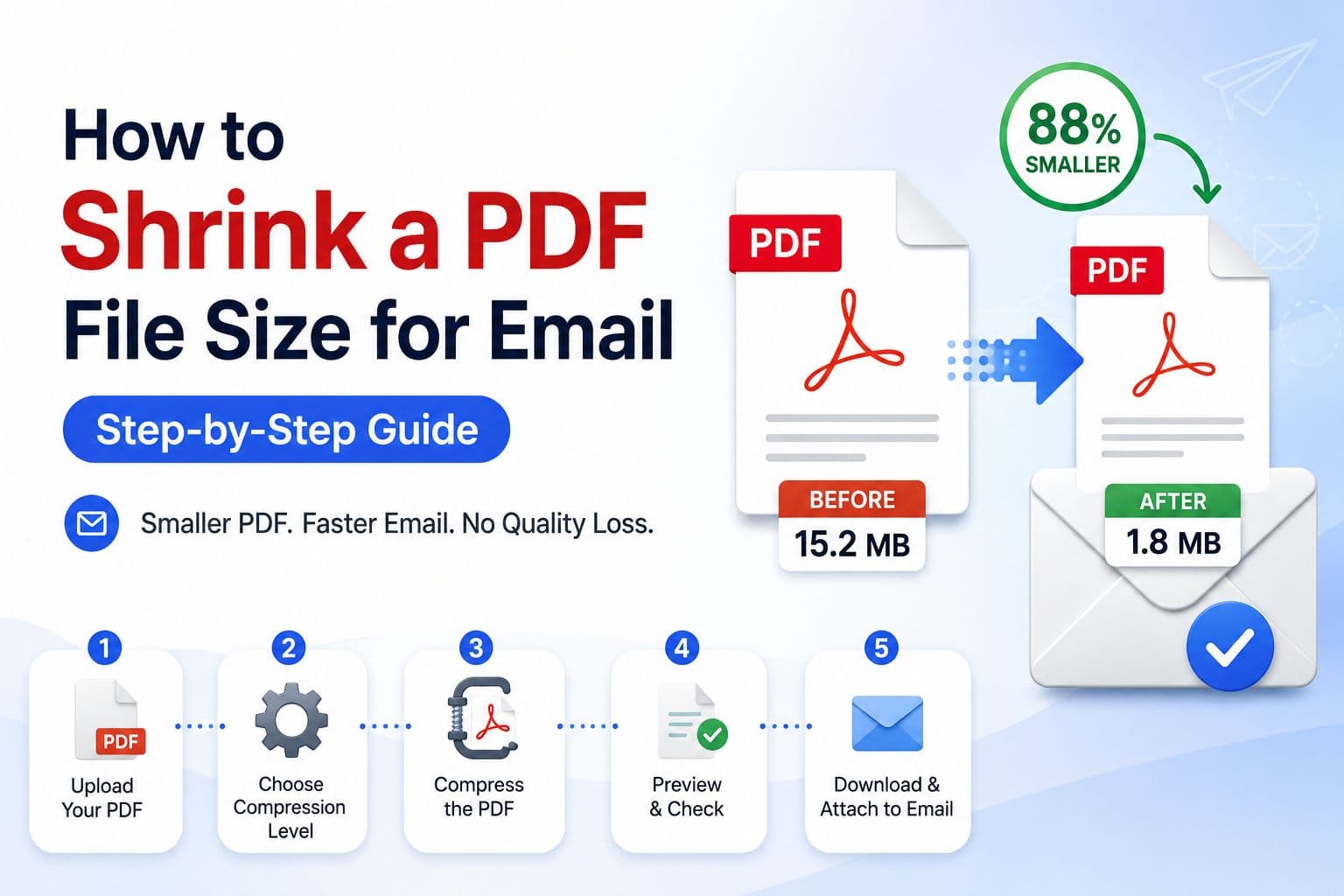
How to compress a PDF for email
- Save an untouched copy of the original.
- Open Compress PDF.
- Choose a PDF up to 100 MB.
- Start with Recommended.
- Select Compress PDF and keep the tab open while each page is rendered.
- Compare the original and compressed sizes.
- Open the downloaded copy and check small text, diagrams, page edges and signatures.
- Attach the copy only if it is readable and the lost features do not matter.
If the result is still too large, try High or use Split PDF. If fine print becomes hard to read, move back to Low or export again from the source instead.
Check the document before sending
Do not judge the result by file size alone. Open it and inspect:
- the smallest text on the page;
- charts, screenshots and QR codes;
- thin lines and light colors;
- every page boundary;
- any section that the recipient may need to print.
Also search for a word and click an existing link. In this compressor's output, those actions will normally stop working because the pages have become images. That is expected, not a conversion error.
Privacy and browser limits
Compression runs on your device, and the PDF is not uploaded to EveryFileTool for processing. The tradeoff is that your browser must hold and render the document in memory.
Each PDF can be up to 100 MB. Long pages, very high-resolution scans and large page counts may hit browser limits sooner. Close unused tabs, keep the device awake and avoid switching away while a large job runs.
A local tool protects the file from being sent to a processing service, but it cannot protect a compromised device, browser extension or email account. Use a trusted device for sensitive material.
Common questions
Will compression keep the text searchable?
No. This tool rebuilds pages from JPEG images, so text is no longer selectable or searchable. Use a source-application export when searchable text matters.
Will forms, links or signatures still work?
No. The visual marks may remain on the page, but interactive fields, links, annotations, accessibility tags and digital signatures are not carried into the compressed copy.
Why did the file not get smaller?
The original may already use efficient image compression, or it may contain mostly text and vector artwork. The tool does not replace the file when its result would be the same size or larger.
Can I compress a password-protected PDF?
An encrypted PDF must be opened first. If you own it or have permission, use Unlock PDF with the correct password, then compress the unlocked copy.
Is splitting better than compression?
It is better when the recipient needs only part of the document or when searchable text and document structure matter. Compression is better for a read-only copy of all pages.
The safest way to shrink an email PDF
Start with the least destructive option: send fewer pages or export a cleaner PDF from the source. Use image-based compression for a disposable viewing copy, keep the original, and check the result before it leaves your outbox.