Quick Answer
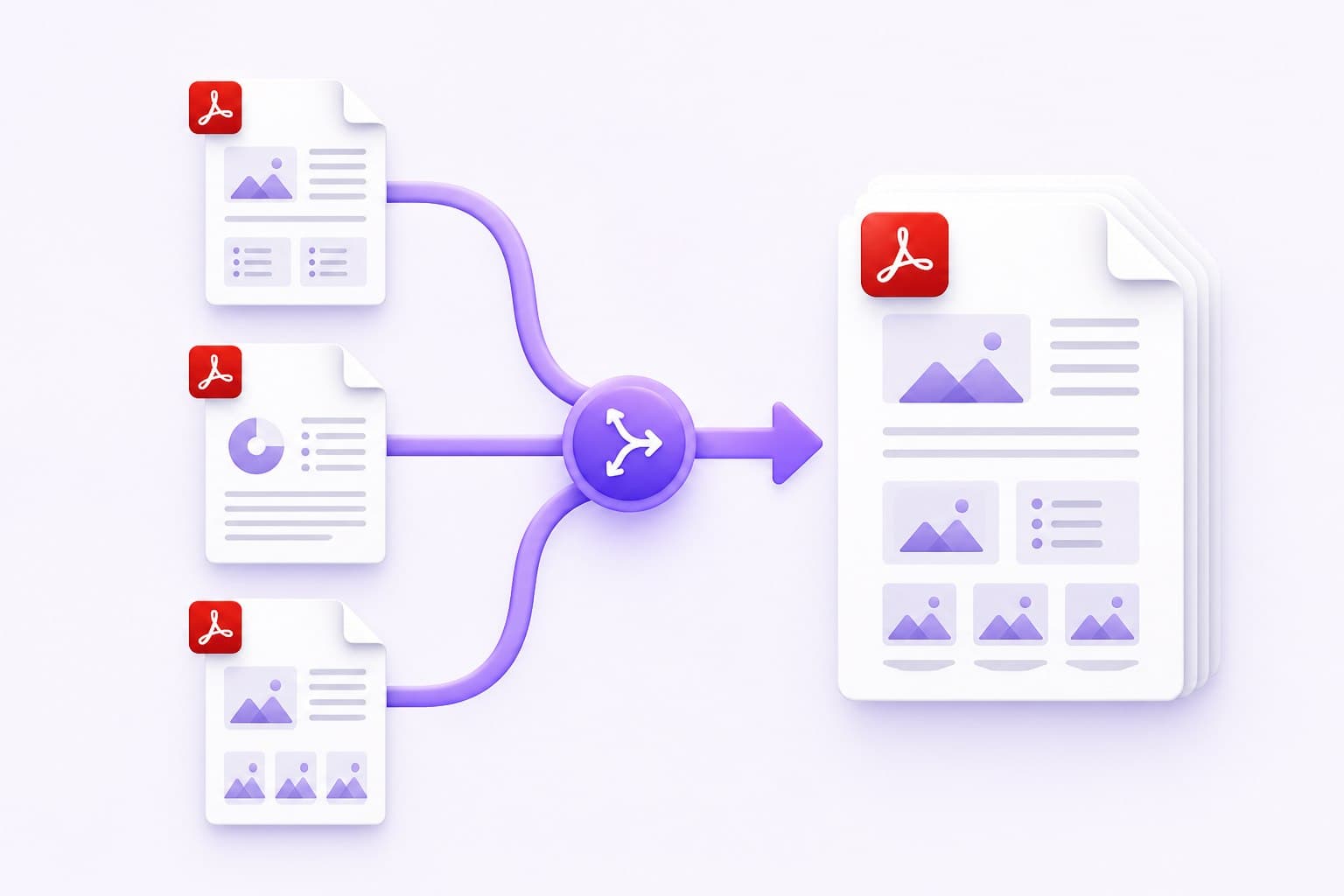
To merge PDF files, open the free Merge PDF tool, add at least two PDFs, arrange the files in the order you want, and select Merge PDFs. The tool combines every page into one document and downloads the finished file as merged.pdf.
The process runs locally in your browser. Your source documents do not need to be uploaded to a processing server, and you do not need to create an account or install an application.
What Does Merging PDF Files Mean?
Merging PDFs means joining two or more PDF documents to create one continuous file. The pages from the first document appear first, followed by the pages from the second document, then the third, and so on.
This is useful when you need to combine:
- A cover letter, résumé, and portfolio
- Invoices or receipts from the same month
- Scanned pages from a paper document
- Chapters, reports, or class notes
- A contract and its supporting attachments
- Application forms and identification documents
Merging is different from compressing. A PDF merger organizes documents into one file; a PDF compressor reduces the file size. If the combined document is too large to email or upload, merge it first and compress the result afterward.
How to Merge PDF Files Online
Step 1: Open the Merge PDF Tool
Go to EveryFileTool's free PDF merger. It works in a modern browser on Windows, macOS, Linux, Android, iPhone, and iPad.
Step 2: Add Your PDF Files
Drag your PDFs into the upload area or choose them from your device. You can select multiple files together and add more documents afterward.
The tool reads each PDF and displays its filename, file size, page count, and a preview of its first page. Check these details before continuing so you do not accidentally include the wrong document.
Step 3: Put the Files in the Correct Order
Arrange the cards from top to bottom in the order they should appear in the finished PDF. You can drag a card to a new position or use the move buttons.
For example, a job application might use this order:
- Cover letter
- Résumé
- Work samples
- Certificates
Take a moment to verify the order. The merger keeps the pages inside each source PDF in their existing sequence.
Step 4: Remove Anything You Do Not Need
Use the remove button if you added a file by mistake. If you only need certain pages from a larger document, use Split PDF first to extract the relevant section, then add that smaller PDF to the merger.
This prevents unnecessary or sensitive pages from ending up in the final document.
Step 5: Merge and Download
Select Merge PDFs. The progress indicator shows each document being added. When processing finishes, the combined PDF downloads automatically. You can also use Download again or start a new merge.
Open the downloaded file and check the first page, last page, total page count, and transitions between documents before sending it to anyone.
How to Merge PDFs in the Right Order
File order is the most common source of mistakes. A merger cannot guess which document should be first, so use a simple naming system before you begin:
- 01-cover.pdf
- 02-report.pdf
- 03-appendix.pdf
Numbering is especially helpful when you are combining many files or working from a phone with a smaller screen. In EveryFileTool, the numbered cards show the exact top-to-bottom order that will be used.
If individual pages inside one PDF are in the wrong order, rearrange or extract those pages before merging. Combining files controls the order of whole documents; it does not automatically reorganize pages within each source file.
Will Merging PDFs Reduce Their Quality?
Normally, merging does not need to recompress the text or images on each page. It copies the source pages into a new PDF container, so text should remain sharp and images should retain their existing resolution.
The output may be roughly as large as all the source files combined. That is expected because merging organizes pages rather than compressing them. If size matters, run the completed file through Compress PDF.
For the safest result:
- Keep an untouched copy of every original file
- Review image-heavy or scanned pages at normal zoom
- Confirm that links, forms, and annotations still behave as expected
- Avoid modifying a digitally signed PDF unless the sender permits it
A certificate-based digital signature protects the integrity of a specific document version. Adobe notes that signed PDFs can become restricted or read-only, so request an unsigned copy before reorganizing a signed document when possible. See Adobe's guidance on limitations of signed PDFs.
Is It Safe to Merge Confidential PDFs Online?
That depends on where processing happens. Many online PDF services upload documents to a remote server. That adds an unnecessary privacy concern when files contain contracts, financial records, medical information, or identification documents.
EveryFileTool's merger uses browser-based PDF processing. The browser reads and combines the documents on your device. This also avoids waiting for large files to upload before processing can begin.
Even with local processing, follow basic document-safety habits:
- Use a trusted personal or work device
- Close the tab after downloading the result
- Delete temporary copies you no longer need
- Check the finished PDF before sharing it
- Do not remove legal protections from documents without authorization
For a deeper explanation, read our guide to browser-based file privacy.
Common PDF Merging Problems
The PDF Is Password-Protected
An encrypted PDF may not open in a merger without its password. If you own the file or have permission to modify it, use Unlock PDF first, then merge the unlocked copy. Do not attempt to bypass access controls on documents you are not authorized to change.
The Final PDF Is Too Large
Scanned pages and high-resolution photos can make the result large. Use Compress PDF after merging. If you do not need every page, extract only the required sections with Split PDF before combining them.
Pages Appear in the Wrong Order
Return to the merger, move the file cards into the correct top-to-bottom sequence, and create the PDF again. Adobe's own PDF guidance also recommends arranging files or page thumbnails before combining them.
One File Will Not Open
The file may be corrupted, incomplete, encrypted, or not actually a PDF despite its extension. Try opening it in a regular PDF reader. If it does not open there, obtain a fresh copy or export the original document to PDF again.
Forms, Bookmarks, or Signatures Behave Differently
Interactive PDFs can contain forms, scripts, bookmarks, annotations, and digital signatures in addition to visible pages. Basic merging focuses on the pages themselves, and some interactive features may not transfer exactly. Keep the originals and test the merged copy before relying on it for a formal workflow.
Merge, Split, or Compress: Which Tool Do You Need?
| Goal | Best tool |
|---|---|
| Join complete documents into one file | Merge PDF |
| Extract or separate selected pages | Split PDF |
| Make a PDF smaller for email or upload | Compress PDF |
| Turn photos or scans into a PDF | Image to PDF |
| Convert PDF text into an editable document | PDF to Word |
For mixed work, the usual sequence is: split unwanted pages, merge the useful files, and compress the completed document.
Frequently Asked Questions
Can I merge PDF files for free?
Yes. EveryFileTool lets you combine PDFs without installing software or creating an account. Open the merger, arrange at least two files, and download the combined document.
Can I merge PDFs on my phone?
Yes. The tool works in modern mobile browsers. Select PDFs from the Files app or device storage, use the move controls to set their order, and merge them in the browser.
Can I combine JPG or PNG images with PDFs?
Convert the images first with Image to PDF, then add the resulting PDF to your other documents. This gives you predictable page sizing and order.
How do I add one page to an existing PDF?
Convert or save the new page as its own PDF. Add the original document and the one-page PDF to the merger, then place the new page file before or after the original as needed. If the page belongs in the middle, split the original at that point and merge the three parts in order.
Does merging delete the original PDFs?
No. The merger creates a new file. Your source PDFs remain unchanged on your device.
Can I merge a digitally signed PDF?
Merging creates a modified document and may affect signature validity or restrictions. Keep the signed original and use an unsigned copy when you need to reorganize pages.
Why is my merged PDF larger than expected?
The output contains the pages and assets from every source file. Merging itself is not compression. Use Compress PDF after checking the combined document.
Final Checklist
Before sharing your merged PDF, confirm that:
- The files appear in the intended order
- The total page count is correct
- No private or duplicate pages were included
- Text and images are readable
- Interactive forms or links still work if required
- The file is small enough for its destination
- You kept the original documents as backups
When everything looks right, your combined PDF is ready to send, archive, or upload. Start with the free Merge PDF tool and create one organized document directly in your browser.