Introduction
You found a video with a song, a podcast episode, a lecture, or an interview - and you only want the audio. Maybe you want to listen on the go, drop it into a playlist, or save space by ditching the video track. The format you want is MP3: a small, universal audio file that plays on every phone, car stereo, smart speaker, and music app on earth.
The video, meanwhile, is almost always an MP4 - the most common video format in the world. Converting MP4 to MP3 simply means extracting the audio track from the video and saving it as a standalone music file. The good news is you do not need to install any software, pay for anything, or upload your private videos to a stranger's server to do it.
This guide explains what an MP4-to-MP3 conversion keeps, what it discards, and which audio setting makes sense for speech or music.
MP4 vs MP3: What's the Difference?
People mix these up constantly because the names look similar, but they are very different things.
MP4 Is a Video Container
MP4 (MPEG-4 Part 14) is a container format. Think of it as a box that can hold several things at once:
- A video track (the picture)
- One or more audio tracks (the sound)
- Subtitles, chapters, and metadata
When you convert MP4 to MP3, you are reaching into that box, taking out only the audio track, and saving it on its own.
MP3 Is an Audio-Only Format
MP3 (MPEG-1 Audio Layer III) stores only sound. It has been the world's most compatible audio format for over two decades. An MP3 file is small, plays everywhere, and is perfect when you do not need the video at all.
Quick Comparison
| Feature | MP4 | MP3 |
|---|---|---|
| Contains | Video + audio | Audio only |
| Typical use | Watching video | Listening to audio |
| File size | Large | Small |
| Plays on music apps | Not always | Everywhere |
| Best for | Films, clips, screen recordings | Music, podcasts, lectures, voice notes |
The takeaway: keep the MP4 if you want the picture; convert to MP3 when all you want is the sound.
Why Convert MP4 to MP3?
Extracting audio from a video is one of the most common everyday file tasks. Here is why people do it.
Listen Anywhere, Hands-Free
An MP3 plays in any music app, on any phone, in the car, and on smart speakers. You can listen with the screen off, which a video file cannot reliably do on most phones. This is ideal for podcasts, audiobooks, and music.
Save Storage Space
The video track is by far the largest part of an MP4. Stripping it out can shrink a file by 80–95%. A 200 MB lecture recording can become a 10 MB MP3 with the full audio intact - a huge saving if you are archiving lots of recordings.
Build Playlists and Libraries
Music apps, DJ software, and media libraries expect audio files. Converting MP4 clips to MP3 lets you add them to playlists alongside the rest of your music.
Capture Talks, Lectures, and Meetings
Recorded webinars, lectures, and meetings are often saved as MP4. Converting them to MP3 turns them into easy-to-store, easy-to-share audio you can replay while commuting or working.
Voice Notes and Transcription
If you only need someone's words - for transcription, note-taking, or reference - the audio is all that matters. MP3 is the natural format for that.
How to Convert MP4 to MP3 (Free, No Software)
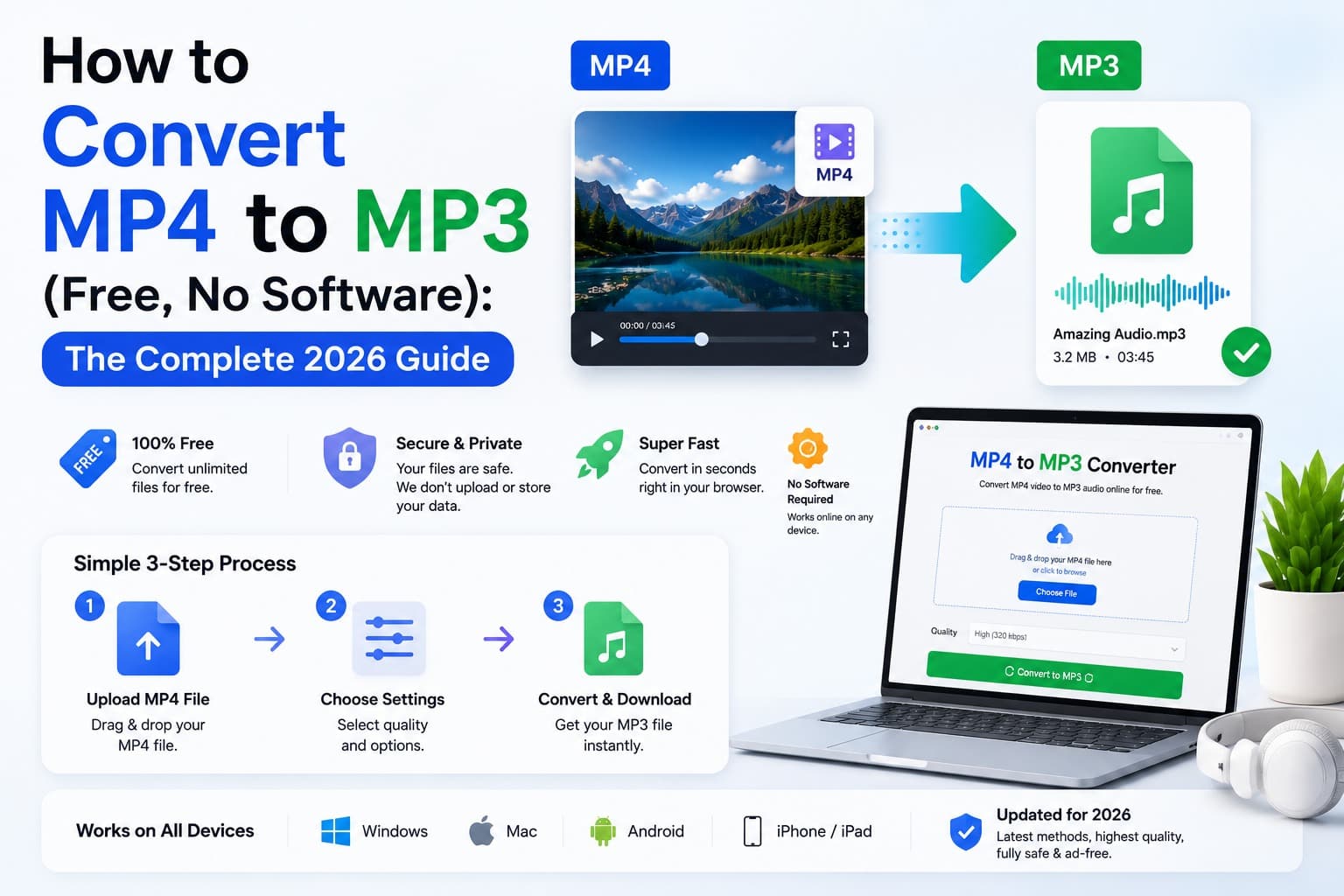
The simplest way to convert MP4 to MP3 is with a browser-based tool that extracts the audio directly on your own device. The MP4 to MP3 converter does exactly that: it reads the audio track from your video and encodes it as an MP3 without uploading your file anywhere.
That last point matters. Many free converters work by uploading your video to a remote server, processing it there, and sending back the MP3. For private recordings - meetings, personal videos, confidential calls - that is a real privacy concern. A browser-based converter keeps everything on your machine from start to finish.
Step-by-Step: Convert MP4 to MP3
Step 1 - Open the converter
Go to the MP4 to MP3 tool. There is nothing to download and no account to create - it runs in your browser.
Step 2 - Add your MP4 video
Click Choose file or drag your MP4 onto the upload box. The tool reads the audio track from the video. Other common video types like MOV and M4V work too.
Step 3 - Choose your MP3 bitrate
Pick the audio quality. A bitrate of 192 kbps is the sweet spot for most people - it sounds great and keeps the file small. Choose 320 kbps for near-original quality (best for music), or 128 kbps for the smallest files (fine for speech and podcasts).
Step 4 - Extract and download
Click Extract MP3. The tool decodes the audio and encodes your MP3 right in the browser, then downloads it automatically. A few seconds later you have a clean audio file.
Step 5 - Listen anywhere
Your MP3 will play in every music app, car stereo, and speaker. Add it to a playlist, sync it to your phone, or archive it - it is a standard audio file with no restrictions.
Choosing the Right MP3 Bitrate
Bitrate controls the trade-off between audio quality and file size. Higher bitrate means better sound and a larger file.
| Bitrate | Quality | Best for |
|---|---|---|
| 128 kbps | Good | Podcasts, lectures, voice |
| 192 kbps | Very good | General use - the recommended default |
| 256 kbps | Excellent | High-quality music |
| 320 kbps | Near-original | Music you care about |
One important note: converting cannot add quality that was not in the original video. If the source audio is low quality, exporting at 320 kbps will not improve it - it will just make a larger file. Match the bitrate to the source and your needs.
How Is This Different from a "Video to Audio Extractor"?
They are essentially the same task with different names. "MP4 to MP3" is the most-searched phrasing, but you may also want the Video to Audio Extractor if your source is a different video format such as MOV, WebM, or AVI. Both tools pull the audio track out of a video and save it as an MP3 - pick whichever matches what you are searching for.
If you already have an audio file in another format, the Audio Converter handles conversions between MP3, WAV, M4A, AAC, FLAC, and OGG.
Common Mistakes to Avoid
Uploading Private Videos to Unknown Servers
Most "free online MP4 to MP3" sites upload your video to their servers. For recorded meetings, personal clips, or anything confidential, that is a privacy risk you do not need to take. Use a tool that processes the file in your browser, like the MP4 to MP3 converter, so your video never leaves your device.
Expecting a Silent Video to Produce Audio
If the MP4 has no audio track - for example, a screen recording captured without sound - there is nothing to extract. Check that your video actually plays sound before converting.
Over-Cranking the Bitrate
Exporting a podcast at 320 kbps just triples the file size for no audible benefit. Speech sounds perfect at 128–192 kbps. Save the high bitrates for music.
Forgetting the Audio Can't Beat the Source
Conversion preserves the original audio; it cannot enhance it. If the recording is muffled or quiet, the MP3 will be too. For volume or clarity issues, fix them at the recording stage where possible.
Trimming After Instead of Before
If you only want a 30-second clip of a song from a long video, convert to MP3 first, then use the MP3 Cutter to trim it precisely. Trimming the MP3 is faster and easier than editing the video.
Frequently Asked Questions
Is it really free to convert MP4 to MP3?
Yes. The MP4 to MP3 converter is free to use, with no watermark or account required. Very large videos may be limited by browser memory.
Do I need to install any software?
No. The conversion runs entirely in your web browser. There is nothing to download, install, or update - it works on Windows, Mac, Chromebook, and mobile alike.
Are my videos uploaded to a server?
No. The tool extracts the audio on your own device using your browser. Your video is never uploaded, stored, or seen by anyone. You can even disconnect from the internet after the page loads and it will still work.
Will I lose audio quality converting MP4 to MP3?
MP3 is a compressed format, but at 192 kbps or higher the difference is inaudible to most listeners. The conversion keeps the original audio faithfully; it simply repackages it as an MP3.
Can I convert MP4 to MP3 on my phone?
Yes. The converter works in mobile browsers on both iPhone and Android. Open the MP4 to MP3 tool, pick a video, and download the MP3 straight to your device.
What bitrate should I choose?
For podcasts, lectures, and voice, 128–192 kbps is plenty. For music, choose 256 or 320 kbps. When unsure, 192 kbps is a reliable all-purpose choice.
Can I extract audio from MOV or WebM videos too?
Yes. Use the Video to Audio Extractor, which handles MP4, MOV, WebM, AVI, and other common video formats and saves the audio as MP3.
Keep the audio, drop the video
Converting MP4 to MP3 is the easiest way to turn a video into a small, universal audio file you can listen to anywhere. Whether you are saving a podcast, extracting a song, archiving a lecture, or pulling the audio from a recorded meeting, you do not need paid software or a risky upload to do it.
The browser-based MP4 to MP3 converter extracts the audio on your device and lets you choose the output quality. Use the MP3 Cutter to trim it or the Audio Compressor when the finished file is still too large.