Introduction
You record a video, try to share it on WhatsApp, and discover that it takes too long, looks softer after sending, or does not fit the option you selected. File size matters, but there is no single WhatsApp video limit that applies to every device and sharing method.
WhatsApp's published guidance distinguishes between normal media, documents, Status updates, platforms and even connection context. The durable approach is to check the current rule shown by your WhatsApp client, then make a smaller copy with enough quality for the way you plan to share it.
This guide explains how to reduce video size without installing another app or uploading your private clip to EveryFileTool. It also explains where WhatsApp's official limits differ so you do not optimize for an outdated universal number.
Why there is no single WhatsApp video limit
The correct target depends on how and where you share the file. In its current Help Center guidance, WhatsApp separates several contexts:
- Chat media: WhatsApp's web guidance describes different default video limits and resolutions for faster and slower connections. That is context-specific guidance, not a promise that the same number applies to every mobile app, account or release.
- Documents: The Help Center describes document sharing separately from normal media. A video sent this way can appear as a downloadable file instead of the usual inline media experience.
- Status: Status has its own duration and quality rules, separate from chat attachments.
- Platform integrations: WhatsApp publishes different limits for some platform-specific sharing paths, such as an iPhone share extension.
Check WhatsApp's current media-sharing guidance for your platform before choosing a target. WhatsApp also describes large file sharing up to 2 GB in its official product updates, but that does not make 2 GB a universal inline-video limit.
The practical target is therefore simple: make the file smaller than the limit shown for your actual sharing flow, while keeping enough resolution and bitrate for the recipient's screen.
Why can a WhatsApp video look softer?
Messaging apps may process media to balance quality, transfer speed and data use. The result can depend on whether you choose standard or HD media, send a document, use Status, and which app or connection is involved.
Preparing a smaller copy yourself gives you control over trimming, resolution and bitrate before sharing. It cannot guarantee that WhatsApp will leave the file untouched, but it lets you inspect the quality before the file enters WhatsApp's own workflow.
What Makes a Video File Large?
Three things drive video file size. Knowing them tells you what to adjust.
Resolution
The pixel dimensions (for example, 1920×1080 for 1080p versus 1280×720 for 720p). Reducing resolution gives the encoder fewer pixels to store, but the final saving also depends on bitrate, frame rate, codec, motion and duration.
Bitrate
How much data is used per second of video. Lower bitrate = smaller file. Past a certain point, lowering bitrate is invisible to the eye but saves a lot of space — this is the heart of smart compression.
Length
Longer videos are bigger, simply. If only part of the clip matters, trimming it down is the easiest win of all.
How to Reduce Video Size for WhatsApp (Free, No App)
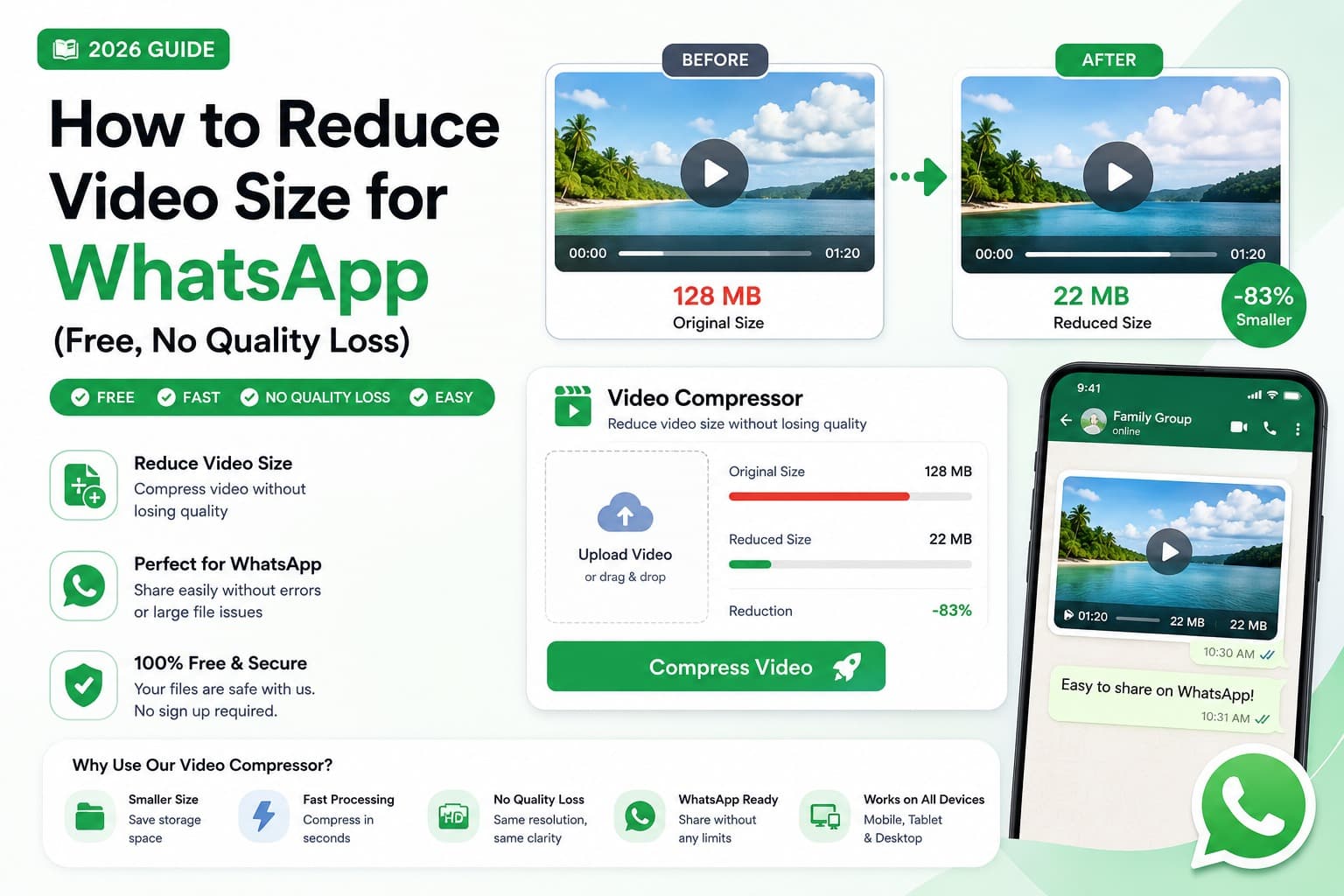
The simplest way is a browser-based compressor that shrinks the video on your own device. The Compress Video for WhatsApp tool is built exactly for this — it reduces your video to a WhatsApp-friendly size without uploading it anywhere.
That privacy matters: the videos you send on WhatsApp are often personal — family, kids, private moments. A browser-based tool processes everything locally, so your footage never leaves your device.
Step-by-Step: Compress a Video for WhatsApp
Step 1 — Open the compressor
Go to the Compress Video for WhatsApp tool. Nothing to install, no account needed.
Step 2 — Add your video
Click Choose file or drag your video onto the box. MP4, MOV, WebM and more are supported.
Step 3 — Compress
The tool reduces the resolution and bitrate to a sensible WhatsApp-friendly target while keeping the video looking clear. It processes right in your browser.
Step 4 — Download and send
Download the smaller file, inspect it, and share it using the WhatsApp option you checked. A smaller source generally transfers more easily, although WhatsApp may still apply its own processing depending on the selected sharing mode.
More ways to reach the limit shown in your app
If your compressed video is still a little too big, combine compression with these:
Trim Off the Parts You Don't Need
Often half the clip is the important half. Use the Trim Video tool to cut to just the moment that matters — a shorter clip is a smaller clip.
Split a Long Video Into Parts
If you need to send the whole thing but it will not fit the selected sharing flow, use the Video Splitter to break it into shorter segments. Check each result against the current limit in your app.
Send Audio Only, If That's All You Need
If the picture doesn't matter — a voice note, a song, a recorded talk — convert it with MP4 to MP3 and send the tiny audio file instead.
Send as a Document for Full Quality
When quality matters more than the normal inline media experience, check whether your WhatsApp client lets you attach the video as a document. WhatsApp currently promotes large file sharing up to 2 GB, but availability, presentation and limits can depend on platform and context. Confirm the current document guidance before relying on that number.
Best Settings for WhatsApp Videos
Use these as starting points, then compare the result with the requirement shown by your app:
| Setting | Recommended for WhatsApp |
|---|---|
| Resolution | Try 720p for a smaller mobile-friendly copy; keep 1080p when detail matters and the sharing flow accepts it |
| Target size | Below the limit shown for your platform, connection and sharing method |
| Format | MP4 with H.264 is a broadly compatible starting point, but check the Help Center's current supported formats |
| Length | Trim to the content that matters; check the current Status duration separately from chat media |
There is no perfect preset for every clip. Motion, detail, frame rate and audio all affect size, so preview the downloaded result before sharing it.
Common Mistakes to Avoid
Uploading Private Videos to Unknown Servers
Some online compressors upload files to a processing server. For personal videos, check how a service handles uploads before using it. The Compress Video for WhatsApp tool processes the selected file in your browser instead.
Assuming WhatsApp will process every file the same way
Standard media, HD media, documents and Status can behave differently. Choose the sharing method first, then prepare and inspect a copy that fits that context.
Compressing an Already-Compressed Video Repeatedly
Each pass of lossy compression loses a little quality. Always start from the original video, not a version WhatsApp already mangled.
Keeping 4K when the recipient only needs a mobile copy
High resolution can add substantial size. Trying 1080p or 720p may be sensible for casual mobile sharing, but keep the original and compare the smaller result rather than assuming the difference will always be invisible.
Forgetting You Can Just Trim
If only 20 seconds of a two-minute clip matters, trimming first (Trim Video) saves more space than any compression setting.
Frequently Asked Questions
Is there one maximum video size for every WhatsApp user?
No. WhatsApp's published guidance varies by platform, connection context and sharing method. Check the current Help Center instructions for your device and whether you are sending media, a document or a Status update.
How can I make a WhatsApp video smaller?
Trim unneeded footage first, then reduce resolution or bitrate until the file fits the requirement shown by your current WhatsApp client while still looking clear.
Can I send the video as a document instead?
Where your WhatsApp client supports it, document sharing can accept larger files and may avoid normal media presentation. Confirm the current document limit and recipient experience in WhatsApp's Help Center.
Is my video uploaded to EveryFileTool?
No. EveryFileTool's WhatsApp video compressor processes the selected video in your browser and does not upload it to EveryFileTool for processing.
Official product behavior was checked against WhatsApp's Help Center and product blog on August 26, 2026. Because WhatsApp can change limits and platform behavior, use the linked official guidance as the final source.
Before you send the video
Choose the WhatsApp sharing method first, check its current requirement, and then make a smaller copy that fits while preserving the detail you need. Keep the original so you can try a different resolution or bitrate later.
The free, browser-based Compress Video for WhatsApp tool does that privately on your own device. Pair it with Trim Video to cut to what matters or the Video Splitter for longer footage, then preview the result before sharing it.