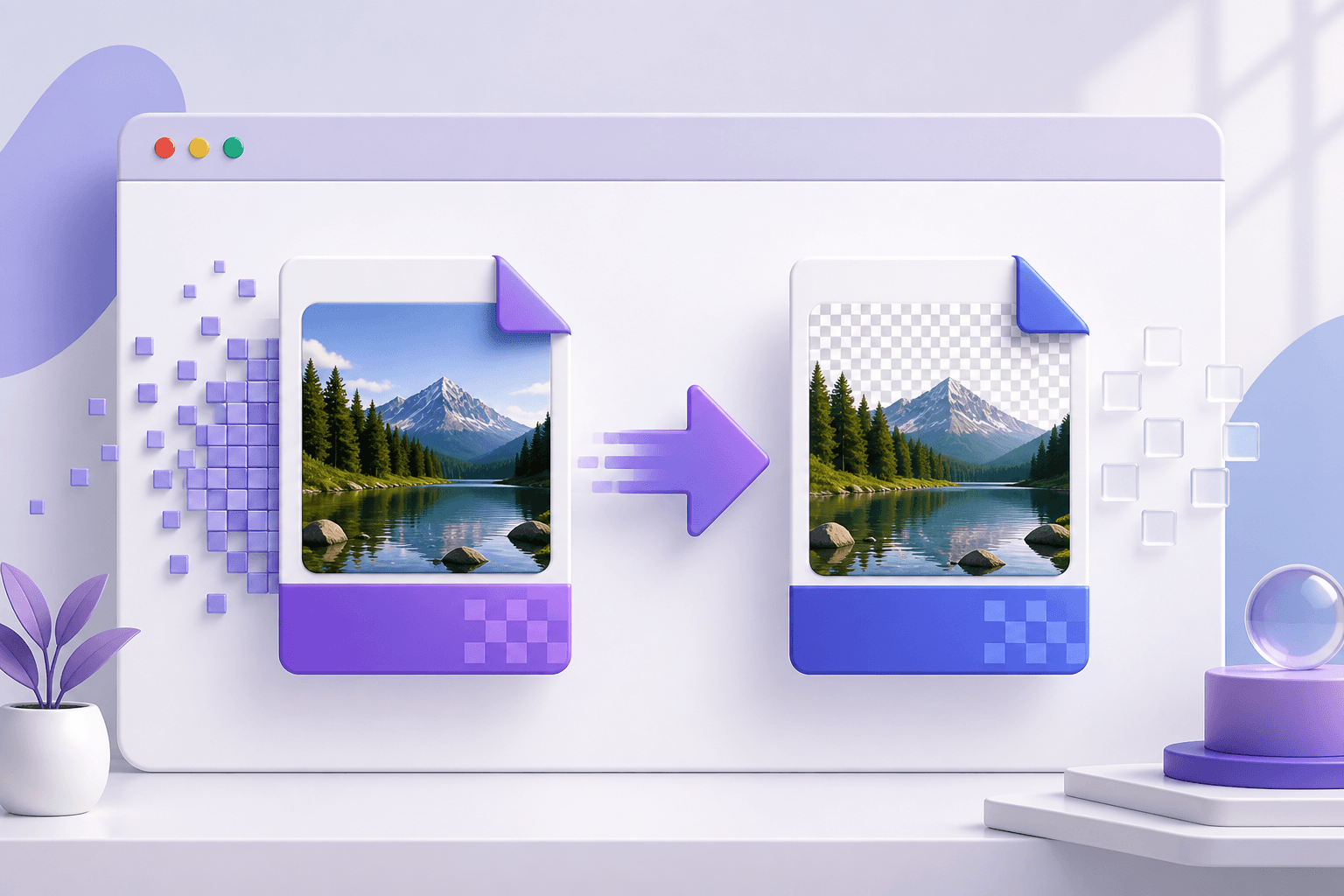
JPG and PNG solve different problems
JPG and PNG are both common image formats, but they are built for different jobs. JPG is efficient for photographs because it can discard subtle visual information to create a smaller file. PNG stores image data losslessly and is usually better for screenshots, diagrams, interface graphics, and artwork with sharp edges.
Converting a JPG to PNG is useful when an app or upload form specifically requests PNG, when you want to avoid adding more JPG compression during later saves, or when the image will enter a PNG-based editing workflow. It is not a way to recover the original quality of a compressed photo.
You can use the JPG to PNG converter without installing software. Conversion happens in your browser, and you download a new PNG while keeping the original JPG unchanged.
How to convert JPG to PNG online
1. Open the JPG to PNG tool
Go to EveryFileTool's JPG to PNG converter. The page accepts JPG and JPEG images. If your source is another format, use the broader Image Converter instead.
2. Choose your JPG image
Select a file from your device or drag it into the upload area. Use the best source copy you have. Repeatedly saving an already-compressed JPG can accumulate visible blocks, ringing around edges, and colour banding.
3. Let the browser convert it
The tool decodes the JPG and draws its pixels into a new PNG. There is no quality slider because PNG output is lossless. That means the PNG preserves the decoded image exactly; it does not mean that missing detail from the original JPG comes back.
4. Download and check the PNG
Download the result, open it, and check its dimensions and appearance. The width and height should match the source image. Compare the file size as well: a photograph may become substantially larger as a PNG, which is expected rather than a conversion error.
For a group of images, add several JPG files and convert them together. Check at least one output before using the entire batch in a project.
What changes when JPG becomes PNG?
The file container and compression method change. The visible image normally looks the same immediately after conversion.
| Property | JPG source | PNG result |
|---|---|---|
| Compression | Lossy | Lossless |
| Best suited to | Photographs | Graphics, screenshots and editing |
| Transparency | No | Supported by the format, but not created automatically |
| Typical photo size | Smaller | Often larger |
| Repeated saves | Can lose more quality | Does not add lossy compression |
The distinction between “lossless” and “better quality” matters. Imagine that the JPG has already simplified fine texture in a cloudy sky. The PNG records the simplified pixels without further loss, but it has no hidden copy of the missing texture to restore.
When converting to PNG makes sense
A website or application requires PNG
Some design systems, publishing tools, and upload forms accept only particular formats. Conversion gives you a compatible copy without changing the original image.
You need a lossless intermediate file
If an image will be edited and saved several times, moving it into a lossless format can prevent additional JPG damage during those later saves. Start from the highest-quality JPG available and keep the source file separately.
The image contains text or hard edges
Screenshots, charts, diagrams, and interface captures often suit PNG. If such an image was supplied as JPG, converting it to PNG stops further lossy degradation. Existing halos or blur remain, but later PNG saves will not intensify them.
You plan to add transparency
PNG supports transparent pixels. JPG does not. Conversion is a useful first step before removing a background in an image editor, but conversion alone does not make any part transparent. For automatic background removal, use the Background Remover and inspect edges before downloading.
When you should keep the JPG
For ordinary photographs, JPG is often the more practical final format. A camera photo with millions of colours and soft gradients can take far more storage as PNG without looking different. That larger file can slow a webpage, consume more mobile data, or exceed an upload limit.
If your goal is simply a smaller photograph, do not convert it to PNG. Use the Image Compressor, reduce oversized dimensions, or consider WebP through the Image Converter. Keep PNG for cases where compatibility, transparency, sharp graphic detail, or a lossless editing stage matters.
Common JPG-to-PNG mistakes
Expecting lost detail to return
Changing the extension or format cannot reconstruct detail discarded by earlier JPG compression. AI enhancement or access to the original source would be a separate process, and even enhancement estimates detail rather than retrieving it.
Expecting an automatic transparent background
A PNG can contain transparency, but the JPG starts with a colour value in every pixel. The converter preserves those pixels. Background removal requires identifying and deleting background pixels separately.
Assuming PNG is always better for the web
Lossless does not automatically mean faster or more appropriate. A large PNG photograph may provide no visible benefit over a smaller JPG or WebP. Choose according to the image content and where it will be used.
Deleting the source too soon
Keep the original JPG until the PNG has been checked and accepted by its destination. A conversion should create another usable version, not remove your fallback.
Frequently asked questions
Does converting JPG to PNG improve image quality?
No. PNG preserves the pixels produced from the JPG, but it cannot restore detail that JPG compression already removed.
Will a PNG file be larger than the original JPG?
Often, especially for photographs. PNG uses lossless compression, while JPG is designed to store photographs more compactly.
Does converting JPG to PNG create transparency?
No. The converted image remains fully opaque unless you edit it separately to remove part of the background.
Can I convert several JPG files together?
Yes. EveryFileTool's JPG to PNG tool supports selecting multiple JPG images and converting them in one session.
Convert only when PNG fits the job
Use PNG when you need a PNG-compatible file, a lossless editing copy, sharp graphic detail, or support for transparency in a later step. Keep JPG for compact photographic delivery. When PNG is the right destination, the JPG to PNG converter creates the new file locally in your browser and leaves your source untouched.