Quick answer
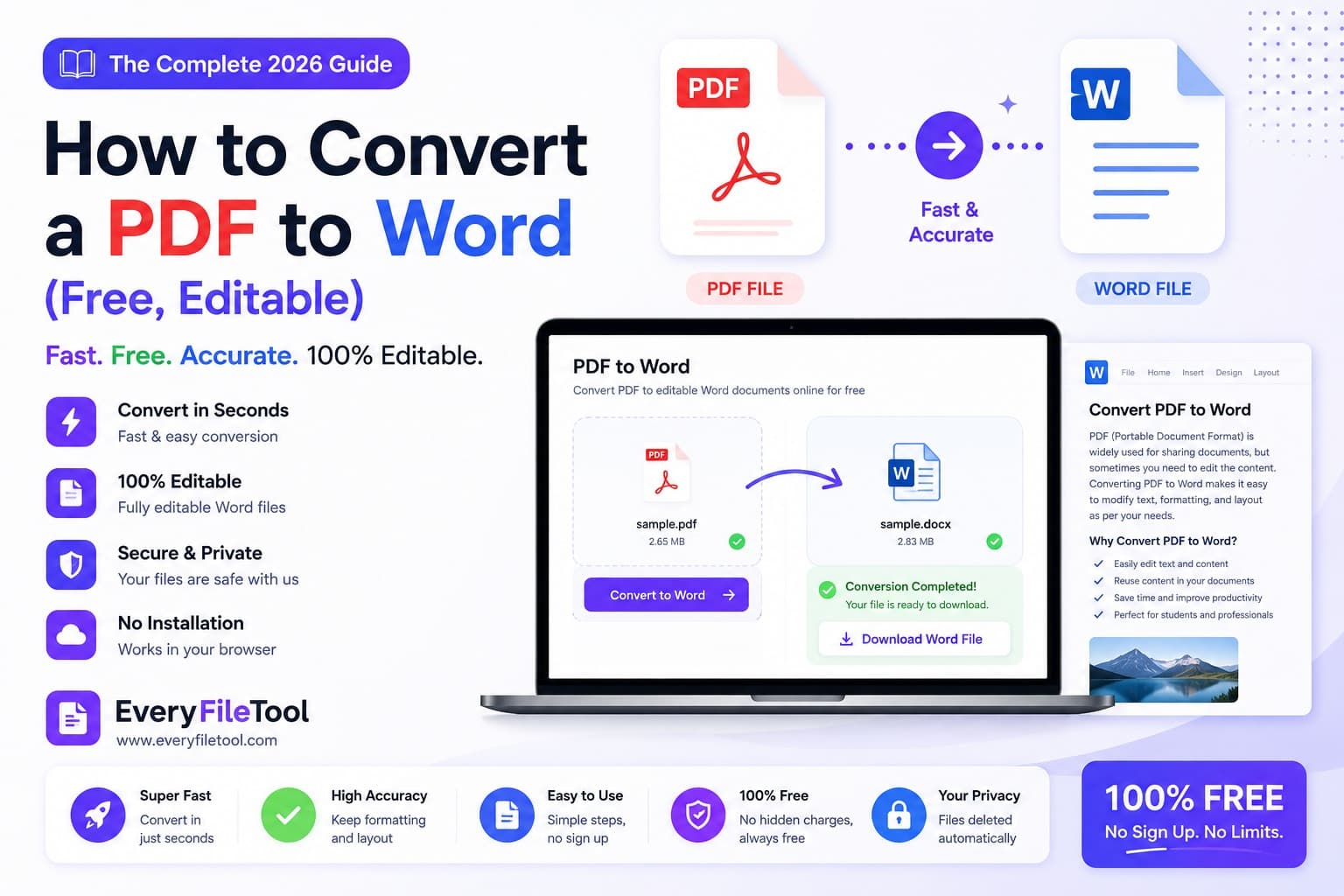
EveryFileTool's PDF to Word tool extracts selectable text from a PDF and places it into a simple DOCX file. It is useful when you need to edit or reuse the wording. It is not a visual replica of the PDF: images, tables, columns, fonts and precise page positions do not carry over.
If the PDF is a scan, it has no text layer to extract. Convert the page with PDF to JPG, then run the image through Image to Text before placing the result in Word.
What the converter actually creates
A PDF describes where items appear on a fixed page. Word documents are built from flowing paragraphs. Moving between those models always involves a tradeoff.
This converter reads the text items stored on each PDF page, groups them into lines and writes those lines as normal Word paragraphs. The output is easy to edit, search and copy. It is deliberately simple.
Good candidates
The tool works best with:
- reports and letters with selectable text;
- single-column documents;
- notes, articles and straightforward forms where you mainly need the wording;
- PDFs created digitally rather than scanned from paper.
What will not transfer automatically
Expect to rebuild or reinsert:
- photographs, diagrams and logos;
- tables and multi-column layouts;
- custom fonts, exact spacing and page breaks;
- headers, footers, form fields and annotations;
- bookmarks, links and digital signatures.
Keep the original PDF beside you while editing. It is the visual reference and may also be the legally important copy.
How to convert PDF text to Word
- Open PDF to Word.
- Choose a PDF from your device. The file can be up to 100 MB, although very long or complex documents may reach browser limits sooner.
- Start the conversion and keep the tab open.
- Download the DOCX file.
- Open it in Microsoft Word, LibreOffice or another DOCX editor.
- Compare it with the original and restore any layout, images or tables you still need.
The source document is processed in your browser and is not uploaded to EveryFileTool for conversion. That is useful for private material, but you should still use a trusted, updated browser and device.
Why a scanned PDF needs OCR
A scan may look like a normal page, but to software it is only a picture. Try selecting a sentence in your PDF viewer. If individual words cannot be highlighted, there is probably no usable text layer.
OCR, or optical character recognition, turns letters in an image into text. For a scanned PDF:
- use PDF to JPG to make an image of the page;
- open Image to Text;
- choose the right language and run recognition;
- proofread names, numbers and punctuation;
- copy the corrected text into Word.
OCR is never guaranteed to be exact. Low contrast, handwriting, decorative fonts, skewed pages and small type all reduce accuracy.
What about password-protected PDFs?
If you own the document or have permission to edit it, remove the open password with Unlock PDF first. A PDF that is encrypted cannot be read until the correct password is supplied.
Unlocking a file does not grant permission to reuse its contents. Copyright, confidentiality and document-retention rules still apply.
Common problems
The Word file is blank
The PDF probably contains page images rather than selectable text. Use the OCR workflow above.
Lines appear in an odd order
Text in a PDF is stored by position, not always in normal reading order. Multi-column pages, sidebars and floating text boxes can therefore be mixed together. Reorder those paragraphs manually.
The formatting looks plain
That is expected. The converter prioritizes editable text rather than layout reconstruction. Use the original PDF to rebuild headings, tables and spacing.
Some symbols are wrong
Embedded fonts can map characters in unusual ways. Check names, dates, figures and mathematical symbols carefully before relying on the converted document.
When another method is better
Use Adobe Acrobat, Microsoft Word's PDF import or another layout-aware desktop application when matching the original design matters. Use OCR software when you have many scanned pages. Ask the sender for the original DOCX when the document is still being edited collaboratively.
EveryFileTool is the practical choice when you need the text quickly and understand that the output is a clean starting point, not a pixel-perfect copy.
What to expect from the Word file
A successful conversion gives you editable paragraphs in a DOCX file. Review it against the original, correct the reading order and rebuild any important visual structure. For simple, text-first PDFs, that can save a great deal of retyping; for complex layouts, it is only the first step.