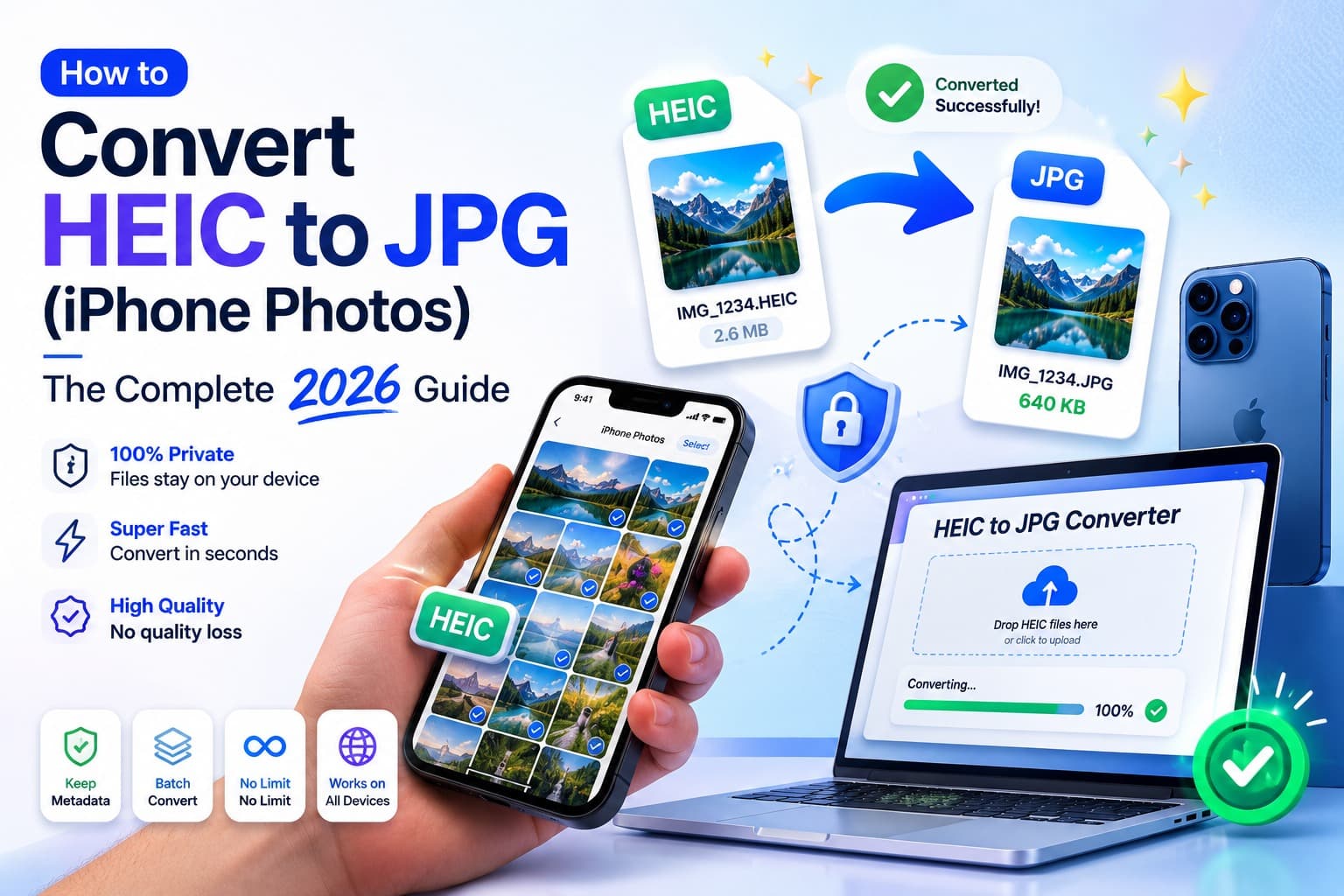
Introduction
If you own an iPhone, you may have run into this problem: you take a photo, send it to a Windows user or upload it to a website, and it will not open. Supported iPhones can capture HEIF or HEIC when High Efficiency is selected in Camera settings.
HEIC can use less storage than JPG at similar visual quality, but compatibility still varies. Some applications, devices, content-management systems, printers and upload forms do not accept it. A JPG copy is often a more broadly compatible option.
This guide explains why iPhones use HEIC, where compatibility still breaks down, and how to make a JPG copy without changing the original photo.
What Is a HEIC File?
HEIC stands for High Efficiency Image Container. It is Apple's implementation of the HEIF (High Efficiency Image Format) standard, which stores images compressed with the modern HEVC (H.265) codec.
In plain English: HEIC is a newer way to store photos and typically uses less storage than JPG at similar visual quality. It can also store data that JPG cannot, such as:
- Multiple images in one file (used for Live Photos and burst shots)
- Depth maps for Portrait mode
- Transparency and 16-bit colour for richer editing
- Image edits stored non-destructively
For Apple's ecosystem, this is great. On an iPhone, iPad, or modern Mac, HEIC files look fantastic and take up less storage. The trouble only begins when those files leave the Apple ecosystem.
Why HEIC Causes So Many Problems
HEIC is technically superior to JPG, yet most people still need JPG. Here is why.
Limited Compatibility
This is the number one reason people convert HEIC to JPG. While Apple devices handle HEIC natively, much of the rest of the digital world does not:
- Some Windows configurations need HEIF or HEVC extensions before they can open HEIC.
- Many websites and upload forms reject HEIC files outright.
- Older Android phones and budget devices often cannot display them.
- Photo printing services and kiosks frequently require JPG.
- Email recipients on non-Apple devices may receive an unopenable attachment.
Software and Editing Support
Plenty of popular applications - older versions of Photoshop, many free image editors, content management systems like WordPress, and countless web apps - still expect JPG or PNG. If your workflow depends on any of these, HEIC becomes a roadblock.
Sharing and Collaboration
HEIC can create friction when a recipient's device, application or upload form lacks support. JPG is more broadly compatible, although support still depends on the receiving software.
The bottom line: HEIC is efficient for supported Apple workflows, while JPG is often the practical choice for broader sharing.
HEIC vs JPG: A Quick Comparison
| Feature | HEIC | JPG |
|---|---|---|
| File size | Typically uses less storage at similar visual quality | Often larger at comparable visual quality |
| Image quality per byte | Higher | Good |
| Compatibility | Apple devices + supported software | Broad support across devices and services |
| Transparency support | Yes | No |
| Live Photos / depth data | Yes | No |
| Best used for | Storing photos on Apple devices | Sharing, uploading, printing |
The takeaway is simple: keep HEIC for storage if you like, but convert to JPG whenever you need to share, upload, print, or edit a photo outside Apple's ecosystem.
How to Convert HEIC to JPG (The Easy Way)
A browser-based option is the HEIC to JPG converter. It decodes selected photos on your device and creates more broadly compatible JPG copies without uploading those photos to EveryFileTool for processing.
Selected photos are processed locally in your browser. Page code and conversion components still need to load, so see the browser-based file privacy guide for what local processing does and does not guarantee.
Step-by-Step: Convert HEIC to JPG
Follow these steps to convert any iPhone photo to JPG in under a minute:
Step 1 - Open the converter
Go to the HEIC to JPG tool. There is nothing to install and no account to create.
Step 2 - Add your HEIC photo
Click Choose file or drag your .heic file onto the upload box. If you are on a phone, you can pick a photo straight from your gallery. The tool only accepts HEIC and HEIF files, so you cannot accidentally upload the wrong type.
Step 3 - Pick your quality
JPG uses lossy compression, so you can choose a quality level. The default of around 92% often looks similar to the original, but compare important details before discarding the HEIC master. Lower quality can reduce the file size further.
Step 4 - Convert and download
The tool decodes the HEIC photo in your browser and produces a JPG you can download. Processing time depends on the photo and device, and the selected file is not uploaded to EveryFileTool.
Step 5 - Use your JPG anywhere
Your new JPG will open on Windows, Android, any website, any printer, and any photo editor - no compatibility warnings, no missing codecs.
How to Convert Multiple HEIC Photos at Once (Bulk)
If you just imported a holiday's worth of photos from your iPhone, converting them one by one is tedious. The HEIC to JPG converter supports bulk conversion - drop in many HEIC files at once, convert them all, and download the results together. This is by far the fastest way to deal with an entire camera roll.
For an even broader set of options, the Image Converter lets you convert between many formats (JPG, PNG, WebP and more) once your photos are in a standard format.
Other Ways to Get JPG from Your iPhone
The browser converter is the most flexible option, but there are a few alternatives worth knowing.
Change Your iPhone Camera Settings (Prevention)
You can stop your iPhone from creating HEIC files in the first place:
- Open Settings on your iPhone.
- Tap Camera, then Formats.
- Select Most Compatible instead of High Efficiency.
From then on, your iPhone will capture photos as JPG. The trade-off is larger file sizes and the loss of some HEIC-only features, but if compatibility matters more than storage, this prevents the problem at the source. Note that this does not convert the HEIC photos you already have - for those, you still need a converter.
Email or AirDrop Tricks
In some cases, emailing a photo to yourself or sharing it through certain apps will automatically convert it to JPG. This is inconsistent, depends on the app, and gives you no control over quality - so it is unreliable for anything important.
Desktop Software
On a Mac, Preview can export HEIC to JPG. On Windows, Photos may require HEIF or HEVC extensions. Browser decoding and available memory also vary, so unusual or damaged files can still fail.
Common Mistakes to Avoid
Uploading Private Photos to Unknown Servers
Some HEIC converters use remote processing. For personal photos or photographed documents, check the service's processing and retention disclosures. The HEIC to JPG converter processes the selected image in your browser and does not upload it to EveryFileTool.
Converting at Very Low Quality
Lower JPG quality can introduce blockiness and colour banding, especially in gradients and skin tones. Preview representative details and keep the HEIC original until you are satisfied with the output.
Forgetting You Still Have the Originals
Converting to JPG creates a new file; it does not delete the HEIC original. If storage is your concern, remember to remove the originals once you are happy with the JPG versions. If quality is your concern, keep the HEIC originals as your master copies.
Converting When You Could Just Compress
If your real goal is a smaller file rather than a different format, you may not need to convert at all. But if you do convert to JPG and the file is still large, run it through the Image Compressor to shrink it further without a visible quality drop.
Frequently Asked Questions
Is it free to convert HEIC to JPG?
Yes. The HEIC to JPG converter requires no account and adds no watermark. Batch, per-file, canvas and browser-memory safety limits still apply.
Will converting HEIC to JPG reduce the quality?
JPG is lossy. The default quality of around 92% often looks similar, but fine detail can change; compare the result before discarding the HEIC original.
Are my photos uploaded to a server?
The selected photo is processed in your browser and is not uploaded to EveryFileTool. Required application code must load first, so offline behavior depends on what the browser has retained.
Can I convert HEIC to JPG on my iPhone or Android phone?
Yes. The converter works in any modern mobile browser. Open the HEIC to JPG tool on your phone, pick a photo from your gallery, and download the JPG straight to your device.
Why does my iPhone save photos as HEIC instead of JPG?
Apple supports High Efficiency capture to use less storage while preserving visual quality. On supported devices, choose Settings → Camera → Formats → Most Compatible when broader JPEG compatibility is more important.
What is the difference between HEIC and HEIF?
HEIF is the underlying image format standard; HEIC is Apple's specific container for HEIF images encoded with the HEVC codec. In practice, the two terms are used interchangeably, and the converter handles both .heic and .heif files.
Can I convert many HEIC files at once?
Yes. The converter supports bulk conversion - add multiple HEIC files, convert them all in one go, and download the JPG results together. This is the quickest way to process an entire camera roll.
When JPG is the practical choice
HEIC is efficient for supported workflows, while JPG remains more broadly compatible for sharing, uploading, printing and editing. Conversion can help when the receiving software does not accept HEIC, although damaged or unusual files may still fail.
The browser-based HEIC to JPG converter makes compatible JPG copies on your device. Pair it with the Image Compressor when the converted files also need to meet an upload-size limit.